Posts

Showing posts with the label Apple

Speech Recognition - Coming of Age!

Image
Ever since I've been involved in the field of assistive technology there's always been the hope that speech recognition could assist students with the writing process. While speech recognition has been effective for some of the students we work with, it hasn't always worked out for the majority of the students that we work with. In the last six months there's been some new developments that make speech recognition a reality for many students. For many of us that are using smart phones we find ourselves using speech recognition more and more on daily basis for text messaging and for writing emails. Now students can take advantage of speech recognition on mobile devices such as iPhone's, iPad, Android phones, Windows tablets as well with as within Google Docs. With the advent of machine learning the speech recognition engines keep getting better and better and do not require initial training. This has made it a very easy entry for students to trial speech recognition....

Tegware Bagel and Boogie Board Perfect Together!

Image
I have been following the digital writing market for some time now and was intrigued when I learned about a new product from Tegware, called the Tegware Bagel , which marries an iPhone case with a small Boogie Board eWriter display, which was released at CES 2014. Having reviewed the original Boogie Board when it was released, I saw first-hand how liberating it was to use for jotting down notes and for doodling and have enjoyed using one ever since. In fact, I now keep a Boogie Board Jot 4.5  on my desk at work to write down reminders and telephone numbers instead of wasting paper. There is a certain beauty in the simplicity of technology when it is done right and in this regard, Tegware has found a sweet spot for using Kent Display's eWriter technology to marry it to an iPhone case. At first glance one might say why would you need to have another display when you have a digital device like an iPhone? That was my first reaction, but soon I realized that there are times when you j...

Presented at the Teacher Meetup NJ 2013 Unconference Today

Image
What other profession do you know of, that would sacrifice a whole day for professional development without pay? Welcome to the world of teaching and the un-conference model which is turning the world of professional development on its heels. Today more than 200 teachers arrived at Richard Stockton College for a full day of professional development with a focus on educational technology . The day started off with a Kidspiration Maps and iReadWrite . Both programs were very well received and offer students a great deal of support in the area of written language. series of quick 20 minute presentations by teachers on all kinds of interesting technology topics. I presented in one of the 20 minutes modules with a focus on reading and writing apps for struggling students. In the 20 minute time period I was able to demo the recently released apps: If you have't taken a look at the Kidspiration Maps which was recently released, I urge you to do so. It incorporates a great deal of ...

Kicking the Tires on the Microsoft Surface RT

Image
ISTE 2013 is long gone and is now just a fleeting memory- but wow was it fun! The ISTE conferences by and large remains one of my most favorite conferences to attend. This year was a lot of fun as I had a chance to meet educators from around the globe who see the potential for creating environments in the classroom and beyond that engage and enlighten students. No doubt we are moving into a post PC world which was evidenced by the sheer number of companies showing off their tablet solutions for the classroom. One of the companies which certainly made a big Public Relations splash this year was Microsoft. As part of Windows in the Classroom Surface Experience Project, Microsoft gave away   10,000 Windows Surface RT's to educators who attended the ISTE conference. It was quite interesting to see educators at the conference carrying their iPad in one hand and their new Surface RT in their left . I even spotted a group of teachers in the hotel one night sitting around the ...

Doing Somersaults with The MAX HandStand DX

Image
As I had noted in a previous post one of the technology trends that you be seeing in the upcoming school year will the be the use of the iPad as a document camera and as presentation tool! The iPad will give MAX HandStand DX teachers the flexibility to teach and do demonstrations like no other tool they have ever used. It is truly exciting times for educational technology and for teachers to harness the power of these tools. I for one no longer take my laptop with me when I do presentations, but instead reach for my iPad and Apple TV. By connecting my Apple TV to my Epson PowerLite 915W projector with HDMI, I can take advantage of Apple's Airplay Technology and project images and apps from my iPad to the screen.  What a great experience it is to be able to utilize my iPad as a presentation and teaching tool. But now watch what happens when I pair up my iPad and Apple TV with the  MAX HandStand DX , The MAX HandStand DX is a solidly built stand for the iPad that can be aff...

Walking to Health

Image
Oh the years do catch up to you and when I turned and looked at myself in October 2012, I knew I had to chart a new course with regards to my weight and health, and so I decided to make some changes. I joined  Weight Watchers in mid October and have been attending the meetings religiously which has helped to keep me focused and on track with their program. Each week our Weight Watcher leader encourages us to talk about a topic that  pertains to changing behaviors and thinking about food differently. Having a group of supportive members in the meeting allows us to share new strategies and tactics to help propel us in the right direction. As much as it is a diet - it is really about changing your attitudes and behaviors with regards to food and one's life style. Weight Watchers really instills in you the importance of looking at the ingredients and the size of the food portions. Using their helpful Weight Watchers app for the iPhone , I can quickly...

Tools of the Trade- A Day of iPad Training

Image
MaxCases Educator Today I set off to do an iPad Training and thought it would be interesting for you to find out what I packed for the workshop. Of course, I packed my trusty Apple iPad which I have been using for the last 2 years and it has treated me well. I also used my Epson Powerlite 915W projector which not only supports VGA but HDMI which is great for using with the Apple TV . If you really want to experience the iPad when doing training then you need to carry your Apple TV with you, so that you can move around the room with the iPad as you are projecting the screen. Apple's Airplay technology is just great for sending the video and audio to the device. I also used the  Maxcases Educator Case  with my iPad which allowed me to hold the iPad securely with the adjustable hand strap which gave me the freedom to write directly on the iPad using the free IPEVO Whiteboard app. Using the IPEVO Whiteboard app enabled me to use the iPad as if I were using an interactive w...

Clicker Docs for iPad Updated

Image
You can read my original review of Clicker Docs , which adds considerable writing supports for students that need word prediction, text to speech, and talking word wall support. Since my review, Crick Software has released an update to the app which adds some powerful new features. The latest version of Clicker Docs now supports external Bluetooth keyboards, Dropbox, as well as spell checking. While the word prediction feature was well implemented in Clicker Docs- it is now more powerful in that any word that is included in the grid automatically comes to the top of the prediction list when a student is typing. So for example if the student was writing about the rainforest and you had created a grid that included the following words: canopy, orangutan, understory, sloth, opossum, emergent layer, forest floor, etc.- these words would automatically come up to the top of list as the student was typing and could be selected from the prediction bar. You can see from the screen shot...

iOS 6 Brings the Highlight Words feature to the iPad

Apple has added a number of new Accessibility features in iOS 6 which makes the iPad even easier to use for students with reading disabilities. In the latest version of the iOS students can now turn on the Highlight Word feature which will highlight the words as they are being read on the screen. Being able to synchronize the highlighting of text on the screen is an invaluable feature and one that many students with reading and attentional difficulties will find to be extremely helpful. Remember that this feature is part of the iOS-so as long as you are able to select text on the screen it will work in most apps. This feature is also great as an editing tool for students when they are doing writing. I have embedded a short video demonstrating how to turn on this feature.

Rethinking assistive technology in a post-PC world

I had a chance last week to write a blog post for SmartBlogs in Education and wanted to share the link with you. As  Moore’s Law  would have predicted, the pace of technology has been accelerating at an incredible rate in the past couple of years, which has made it a challenge for educators to select and decide on which technology to bring into the classroom. While general education is now wrestling with how to handle the purchase of tablets (iPads) for classroom use, the decisions that have to be made with regards to using these technologies with students in special education has become even a bigger issue.   Continue to Read Article Your comments are welcome!

Launching the AssistiveTek Minute

Image
I am excited to announce a new feature on my blog today called " The AssistiveTek Minute ." Each week, I will highlight a piece of assistive or educational technology that I have found to be innovative and useful in the classroom. This week in the  " The AssistiveTek Minute, " I highlight the Franklin AnyBook Reader an easy to use reading tool to engage students in the reading process.  If your company is interested in sponsoring the  "The AssistiveTek Minute then please get in touch with me- it is a great way to get the word out about your company and products. The video was produced using an Apple iPhone 4S and the Swivl

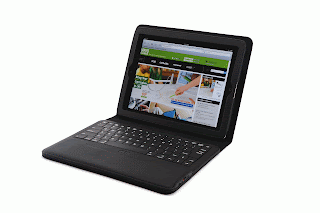
IPevo Delivers with the IPEVO Typi Folio Case

Image
I have always been impressed with the iPevo Company  and the innovative products that they develop for computers and iPad. I had a chance this past week to review the  IPEVO Typi Folio Case which is a well constructed portfolio type of case for the iPad 2 with a Bluetooth Wireless keyboard. The case is made of soft leather and felt which is light weight, slim and attractive. To get started using the  IPEVO Typi Folio Case  just slide your iPad 2 into the case and press the Bluetooth connection button to pair  the keyboard. Pairing the Bluetooth keyboard was a breeze and within seconds I was using the keyboard to type a memo. The top row of the keyboard has dedicated keys to make it easy to navigate, adjust the volume, and play videos. The  IPEVO Typi Folio Case ,  Bluetooth keyboard is comfortable to use and has a region below the keyboard which acts as a a palm rest. The Bluetooth keyboard has a magnet base which keeps the k...

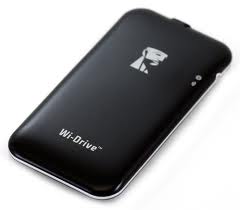
Kingston Wi-Drive: Expanding Your Storage Capacity on Your iPhone & iPad

Image
While having a 16 GB iPhone or iPad sounded like you would have lots of storage capacity when you first bought it-before you know it the apps, movies, music and documents begin to take up lots of space and soon you are running on empty. Now what are you going to do? Well with the advent of the Kingston Wi-Drive there is a solution and a good one at that. The Kingston Wi-Drive is available in a 16GB or 32GB configuration and is about the size of the iPhone but slightly slimmer. Once you charge the  Kingston Wi-Drive via the USB charger that is supplied and installed the  Kingston Wi-Drive app you are ready to test it out. Simply plug the  Kingston Wi-Drive into the USB port on your Mac or PC and drag documents, movies, music, and videos onto the drive to copy them over. Once the files are copied dismount the drive and go to your  Settings on your iPad, or iPhone and  to connect to the Wi-Drive Network. Now launch the Wi-Drive app on your iPhone or iPad and lo and...