Posts

Showing posts with the label boogie board rip

Tegware Bagel and Boogie Board Perfect Together!

Image
I have been following the digital writing market for some time now and was intrigued when I learned about a new product from Tegware, called the Tegware Bagel , which marries an iPhone case with a small Boogie Board eWriter display, which was released at CES 2014. Having reviewed the original Boogie Board when it was released, I saw first-hand how liberating it was to use for jotting down notes and for doodling and have enjoyed using one ever since. In fact, I now keep a Boogie Board Jot 4.5  on my desk at work to write down reminders and telephone numbers instead of wasting paper. There is a certain beauty in the simplicity of technology when it is done right and in this regard, Tegware has found a sweet spot for using Kent Display's eWriter technology to marry it to an iPhone case. At first glance one might say why would you need to have another display when you have a digital device like an iPhone? That was my first reaction, but soon I realized that there are times when you j...

Using Inspiration 9.1 to Visually Map Our Process

Image
I think that we have all come to realize that using visuals is a great way to communicate ideas and processes. This is especially true when we need to communicate a series of steps to complete a process. While words and step by step directions can help us understand the process,I have found that for most students as well as adults having that visual support is a great way to ensure that everyone is on the same page and understands the steps needed to accomplish the task. I just recently was working with a school that will be utilizing the Boogie Board RIP to take digital notes and while using the Boogie Board RIP is a fairly easy, there are some important steps involved to do use it correctly so that the notes are recorded properly. Rather than write a long list of step by step directions, I decided to use Inspiration 9.1 to create  a visual that would explain the process. Having access to tools like Inspiration makes it easy for teachers to create great looking visuals that ca...

Evernote 5 Released for iOS Devices

Image
I have been using  Evernote for some time now and really enjoy being able to have access to all my important stuff on any device that I may be using. As I use more and more devices that are linked to Evernote ( ie. Boogie Board RIP and the Livescribe SKY WiFi pen) it is great to see that the company continues to develop their apps to make the process that much easier to use on iOsS devices. Just yesterday, Evernote released a new version of their software for iOS devices which really streamlines the process of accessing your notes on the iPhone and iPad. The user interface is much improved in this version and makes great use of the limited real estate on the iPhone. Evernote now uses 5 dividers that run across the screen that give you access to: Premium Features, Places, Tags, Notebooks, and All Notes. By simply clicking on a divider the screen springs open to reveal the contents. By far this is the cleanest and most refreshing interface so far that we have se...

MyScript Studio Notes Edition- Adding Vocabulary

Image
I have been utilizing my Boogie Board RIP daily for recording notes and have found using  MyScript Studio Notes Edition to be ideal for doing the hand writing conversion. One of the powerful features in MyScript Studio Notes Edition is the ability to add new words to its core dictionary so that when it encounters the unique word it knows how to convert it. In the screencast below, you will see how I was able to enter the word Nearpod , which is a great app for the iPad and how  MyScript Studio Notes Edition then handled the text conversion. Using the add Vocabulary feature is a great way to teach MyScript Studio Notes Edition how to convert unfamiliar handwritten words that it encounters.

Boogie Board RIP Adds Handwriting Recognition

In my last post I share with you how the  Boogie Board RIP  integrates with  Evernote  the online note taking service. Today I would like to share with you a screencast that shows you how you can take your hand written notes and covert them to editable text that can be exported to Microsoft Word. The Boogie Board RIP now supports hand writing recognition using  MyScript Studio Notes Edition  software which adds another facet to this handy note taking device. Watch my screencast as I demo just how easy it is to convert your notes with  MyScript Studio Notes Edition . Download a rial version of . Download a trial version of   MyScript Studio Notes Edition  and see just how easy it is to convert your handwritten notes! This screencast was created using Camtasia Studio 8

Boogie Board RIP Adds Evernote Integration

Since the ISTE 2012 Conference, I have be experimenting with the Boogie Board RIP and how it could be used by students in the classroom for taking notes. I was excited to learn that last week Improv Electronics released the Virtual Desktop Companion 2 software that now includes Evernote integration and handwriting recognition support using MyScript Studio Notes Edition software. Now it is possible for students who are using the Boogie Board RIP to take notes and save them to their Evernote account. I have put together a short screencast demonstrating just how easy it is to send your notes to your Evernote account. The Boogie Board RIP can store 200 pages of notes which at any time can be moved to your Evernote account giving you complete freedom to store and file them. Look for another screencast coming soon, demonstrating the handwriting recognition software that will allow you to go from a handwritten note directly into Microsoft Word. Screencast created using ...

Have You Flipped? Your Classroom That Is

Image
There was a lot of buzz at ISTE 2012 with regards to  the "flipped classroom" and how it can be implemented in the classroom. Many educators who were talking about the change in how instruction is being delivered were excited by what they see happening in their classrooms. For those of you who may not be familiar with the term "flipped classroom" -it is when the instruction takes place outside the classroom thereby giving teachers ample time to differentiate instruction and have students apply their skills during classroom time. Many teachers who have moved to the "flipped classroom" model are creating short instructional videos in a number of creative ways using a host of different hardware and software solutions. While at ISTE 2012, I had the opportunity to meet with Shane Lovellette, Product Manager for Camtasia Studio 8 who walked me through some of the new features that is found in their recent release of Camtasia Studio 8. Camtasia Studio is one of ...

Using the Boogie Board RIP with the Virtual Desktop Companion

I have been having a lot of fun using my Boogie Board RIP over the last couple of weeks just doodling and drawing. However, I wanted to see if I could integrate it into my teaching and blogging and came up with a way to do both. Using the Virtual Desktop Companion software which is now available for Windows on the website, I was able to connect my Boogie Board RIP and everything that I write could be seen on my computer in real time with the software installed. Pairing up the Boogie Board RIP and ScreenR, I was able to create a short video with audio to show you what is possible. Using both tools together I was able to quickly create a video and place it on my blog. Using the Boogie Board RIP   Virtual Desktop Companion  software application extends the usefulness of this product and opens up doors for creating more interactive and engaging content. I would be interested in your thoughts.

Boogie Board Rip- Fun Doodling Gadget

Image
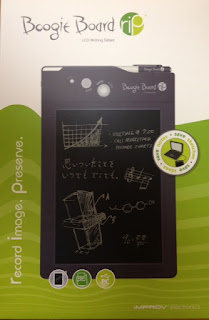
As a child, one of my favorite toys was an Etch a Sketch. I could spend endless hours creating wonderful masterpieces on it by turning the two white dials. In some ways the Boogie Board Rip LCD Writing Tablet reminds me of the Etch a Sketch. The Boogie Board Rip is similar in many respects to the original Boogie Board that I reviewed last year, but adds the one important feature of being able to save your drawings and transfer them to your computer. You will notice when you unbox your Boogie Board Rip that in addition to the Erase button you will find a Status and a Save/Wake button. You will also notice that the Boogie Board Rip now includes a stylus that you will need to use in order to save your rendered drawings. There is also a Lock and Unlock switch on the top left side to help you from accidentally erasing your drawings when you store the Boogie Board Rip. To get started with the Boogie Board Rip, I pulled out the stylus and unlocked the device and started doodling.  I hav...