Posts

Showing posts with the label brian friedlander

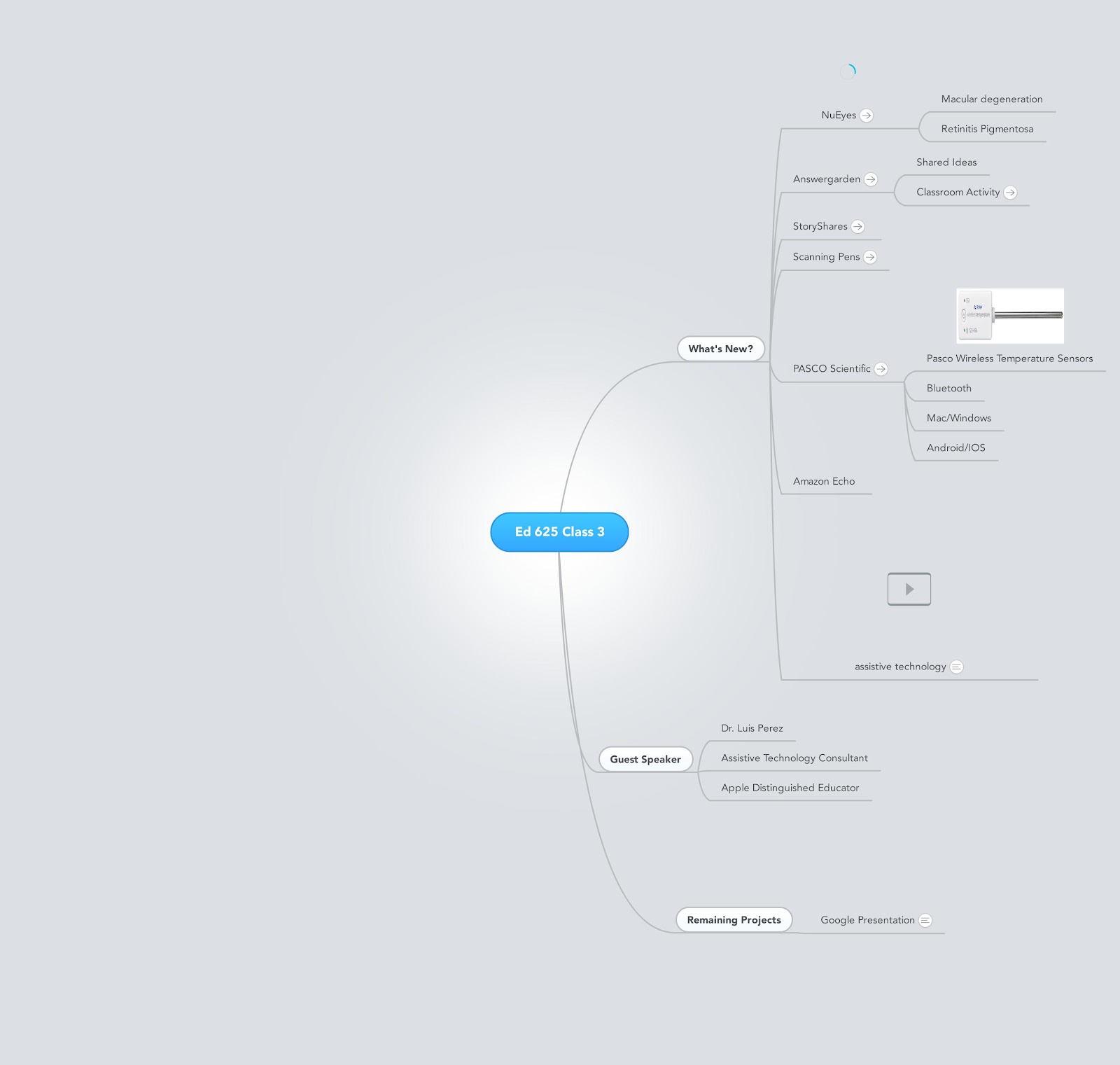
Maximizing your Teaching in the Classroom with MindMeister
Image
During my career as a professor and assistive technology consultant which has spanned over 30 years, I have seen the many benefits of providing students with visual and graphical supports to help them understand material. As much as students have benefited from the use of mind maps and graphic organizers, I would have to say that if anyone has derived benefits from  using these tools, it has been me. Early on in my teaching career, as a Professor of Education, I needed to come up with a strategy to deliver content to my students in the classroom that could provide a quick way to attach documents, notes, and links to web sites. As I was reflecting on this need, I quickly realized that I could use MindMeister to help me organize my in-class lectures and resources. MindMeister could provide me with a very fluid and powerful way to organize my lectures and provide my students with the resources that they would need for class. MindMeister provided me with a set of tools that would make ...

Co-Teaching and Technology: Enhancing Communication & Collaboration- Just Released!

Image
With the expansion of co-teaching as a means to improve student outcomes, technology can be an invaluable resource.  Co-teachers need to plan collaboratively, jointly implement lesson plans, and cooperatively assess student progress.  This reference guide provides practical  strategies on how technology can facilitate co-planning, expedite sharing of student data, and streamline many other tasks that ultimately assist in accomplishing co-teaching's goal: improved student outcomes. Whatever your preferred computer platform, co-teachers can apply these strategies and applications to accommodate all learners' needs. Written by the nation's foremost authority on co-teaching, Marilyn Friend, and Brian S. Friedlander, an expert in the use of instructional and assistive technologies, this handy tool  features an overview of co-teaching fundamentals, along with recommendations of over t...

Co-Teaching & Technology- Enhancing Communication & Collaboration

Image
I am happy to share that Co-Teaching & Technology-Enhancing Communication & Collaboration (a laminated guide) by Marilyn Friend and I will be released shortly and is packed with practical suggestions on how you can get the most out co-teaching and technology. With the expansion of co-teaching as a means to improve student outcomes, technology can be an invaluable resource.  Co-teachers need to plan collaboratively, jointly implement lesson plans, and cooperatively assess student progress.  This reference guide provides practical  strategies on how technology can facilitate co-planning, expedite sharing of student data, and streamline many other tasks that ultimately assist in accomplishing co-teaching’s goal: improved student outcomes. Whatever your preferred computer platform, co-teachers can apply these strategies and applications to accommodate all learners’ needs. Written by the nation's foremost authority on co-teaching, Marilyn Friend, and Brian Friedlander,...

Adobe Presenter 9- Using the Drag & Drop Feature

With the release of Adobe Presenter 9 comes the Drag and Drop feature which gives developers a way to create interactive drag and drop questions to a quiz. The Drag and Drop feature is intuitive and allows you to create a number of different types of questions that can include both text and pictures. In the Halloween example, I created a simple Drag and Drop quiz called the Candy Challenge that allows the user to match a picture of the candy bar with the name of the candy. In the screencast below you will see just how easy it is to create a Drag and Drop question in Adobe Presenter 9. To actually try the Candy Challenge click on the link .

Belkin Sets the Stage!

Image
As the iPad takes hold of the classroom, educators are looking for new ways to extend the functionality of the device and take advantage of it's powerful feature set. While many of us have utilized the camera on the iPad for still photographs or for taking classroom videos- companies like Belkin want to extend the reach of these capabilities and help teachers get the most out of their iPad investment. With this in mind Belkin has just released the Belkin Tablet Stage which turns your iPad into a document camera and presentation system. Having had a chance to work with the Belkin Tablet Stage first hand, I am impressed with the quality and attention to detail of the design. Putting together the Belkin Tablet Stage took about 10 minutes and was rather straight forward using the step by step directions in the booklet that accompanied the device. The Belkin Tablet Stage cradle can accompany a wide range of tablets, everything from the iPad 2, Samsung Galaxy, to the iPad...

ISTE 2013- What I Will Be Packing!

Well it is hard to believe that another year has come and gone and I will be off to ISTE 2103 Conference in San Antonio in a couple of days! It figures to be an exciting venue with over 18,000 educators attending. I am sensing a lot of energy this year which should make for a great show. I put this Haiku Deck together to give you a glimpse of what I will be packing. Enjoy-and stay tuned for some new product announcements on my blog! www.haikudeck.com

iPad Workshop: Using the IPad for Students with Learning & Organization Disabilities

Image
Join me for a full day workshop as we explore how the iPad can be used with students with learning and organization disabilities. The multi-sensory design of the iPad has made a big impact in the field of education because it appeals to all learners. There are thousands of applications (apps) in the area of education, with many designed specifically for students with learning disabilities and organizational difficulties. Come learn about the built-in IOS features that make the iPad an ideal device to support students with learning and organizational difficulties. Learn about some new workflows and how students can use the iPad to organize their school life. Come learn about apps that can be used as students move through the writing process, from brainstorming to publishing. During this session you will learn about mind mapping apps, word prediction, text to speech, speech recognition and other supports to assist students in the writing process. Similarly learn about some new and innova...

Clicker Docs for iPad Updated to Version 1.2

Image
For those of you who are using Clicker Docs for the iPad it was just recently updated to version 1.2 and some really nice features which include: Clicker Docs- Large Size Prediction Bar & Word Count What's New in Version 1.2 - Option to set a bigger size for the Predictor/Spell Checker suggestions - Improved predictor performance - Improved hardware keyboard support – predicted words, spell checker suggestions and SoundShift button can now be accessed while the virtual keyboard is minimized - Word count added to Document menu - Thumbnails of Word Banks are shown in Explorer, Favourites and Recents - When adding a new grid, this is now inserted after the current grid - New View & Edit option when pasting text in Edit Mode – makes it even easier to create an A-Z Word Bank from any piece of text - The language (British or American English) is still set automatically when the App is first used, but this setting can now be changed - More pronunciation improvements I for one am ...

Belkin Tablet Stands - Adding Ergonomics to the Tablet Equation

Image
While most schools are eager to purchase the latest iPads or tablets for the classroom sometimes they may over-look how and where students will be using them. When looking at how students will be utilizing the iPad it is Belkin Tablet Stand important to take look at the positioning of the iPad so that it is at a comfortable viewing and typing height. Sometimes in our haste to get the latest technology into the classroom we may overlook the ergonomics which can have a big impact on just how functional the system is. With this as a backdrop, I had a briefing with Jon Roepke, Belkin Senior Product Manager, Education who had a chance to share with me some of their offerings from Belkin in the K-12 marketplace. Belkin has released two stands for the iPad ( Belkin Tablet Stand & Belkin Tablet Stand with Storage ) which vastly improve the ergonomics when students are typing or utilizing the iPad in either landscape or portrait mode. These finely crafted devices are both aes...

My Evernote Workshop at the Library

Over the past couple of years I have done a number of technology sessions at my local public library which have pretty well attended. This year I decided to do a presentation on Evernote, which I thought would be of interest to the community  I have been an Evernote user for over 5 years and use it more and more for my own personal and professional needs. During the presentation I demonstrated how to use the Evernote application on a computer, iPhone & iPad. Using my trusty Epson PowerLite 915W projector , I am able to connect my laptop via a standard USB cable to the projector and connect my iPad via the VGA cable. Using the Epson Remote that is included with the projector, I can quickly switch between the two devices which makes it really handy and easy to switch between the computer and the iPad when doing presentations. I should note that the USB connection sends both the video out and audio to the projector which makes it a re...

Using Inspiration 9.1 to Visually Map Our Process

Image
I think that we have all come to realize that using visuals is a great way to communicate ideas and processes. This is especially true when we need to communicate a series of steps to complete a process. While words and step by step directions can help us understand the process,I have found that for most students as well as adults having that visual support is a great way to ensure that everyone is on the same page and understands the steps needed to accomplish the task. I just recently was working with a school that will be utilizing the Boogie Board RIP to take digital notes and while using the Boogie Board RIP is a fairly easy, there are some important steps involved to do use it correctly so that the notes are recorded properly. Rather than write a long list of step by step directions, I decided to use Inspiration 9.1 to create  a visual that would explain the process. Having access to tools like Inspiration makes it easy for teachers to create great looking visuals that ca...

Livescribe Helper-to the Rescue

Image
I use my Livescribe SKY WiFi pen almost everyday to make classroom observations, take notes, and when I am doing assistive technology evaluations. Having the Livescribe SKY WiFi pen sync all of my notes to Evernote has really changed my work flow and giving me the freedom to use my pen where ever I may be. Not having to manually sync my Livescribe SKY WiFi pen has been huge for me-eliminating a big step in the process that I had to do with the Livescribe Echo pen. Now I don't even have to think about it and when I am in a WiFi area the pen automatically connects and uploads all of my notes including the audio which is really fantastic. But there are those times when I am in places that while I have access to WiFi, requires web authentication which unfortunately the Livescribe SKY WiFi pen cannot negotiate. This is the case in my office on my college campus, where I teach. To solve this issue, I have been  using the Livescribe Helper application which I have installed on my d...

From Inspiration 9.1 to Inspiration Maps-Seamless!

Image
It is exciting to watch as software publishers are rolling out software that take advantage of each of the respective platforms and in the process creating some powerful workflows. Such is the case for Inspiration 9.1 on the desktop and Inspiration Maps on the iPad. If you have Inspiration 9 installed on your computer and are using Inspiration Maps on your iPad, I would strongly suggest updating your desktop application to version 9.1. I recently did a presentation to administrators on how they can use Evernote to organize their workflow in the cloud and used an Inspiration Map to visually demonstrate the uses. I was able to quickly accomplish this task by opening Inspiration 9.1 on my laptop and creating the map. Since I used web based graphics in my map it was a lot easier to create the map using my computer. When I was done using Inspiration on my laptop, I simply went to the File Menu and selected Export to iPad Inspiration Maps... This automatically...

Exporting your Clicker 6 Grids to Clicker Docs

Image
If you haven't updated your copy of Clicker 6 , I would highly advise it- especially if you are also using Clicker Docs and Clicker Sentences on an iPad. One of the really nice features of the recent update to Clicker 6, is the ability to export your grids to Clicker Sentences and Clicker Docs. The process could not be any easier and it is a great way to re-purpose your grids so that they can be used by students on the iPad.. You can see from the screenshot that under the Clicker Set menu there is now an Export Clicker Set for App option. Once you select either Clicker Sentences  or Clicker Docs - the grid is automatically saved in your Apps folder within your Dropbox account. In this example I created a grid with text from the book Call of the Wild in Clicker 6 and then Exported it to Clicker Docs. Now once in Clicker Docs on my iPad, I can click on the Folder icon on the Top Left and Select Dropbox to see the Grids that I have Exported. Now all that is ...

WETech 2013 Presentation

I had the opportunity to present this past weekend at the WETech 2013 Conference which was a lot of fun. More than 150 educators attended the conference and had the opportunity to select from a vast array of exciting technology workshops during the course of the day. I presented on the topic of Supporting Students with Executive Function and Learning Disorders. The presentation focused on the rich array of apps that are now available on the iPad to support students who present with Executive Function Disorders and Learning Disabilities. During the course of the presentation I touched up a long list of apps that have enabled students to be more successful and productive in their schoolwork. Some of these included: Evernote , Clicker Docs , Read2Go , Voice Dream , Inspiration Maps , iWordQ , Remind101 , iThoughts , and Penultimate to name a few. It is amazing how the field of assistive technology has been transformed by the iPad and going forward we...

My Top 5 Tips When Using Evernote

Image
I have been an Evernote user for the past 5 years and find myself using it more and more each day in the work that I do. Having access to my notes, PDF's, emails, Word documents, and whatever else I need to store, is invaluable to me. So here are a couple of tips that I hope will make you more productive using Evernote . Tip 1 Set up Import Folders From your Mac or PC it is easy to set up a folder known as an Import Folder from your computer. Once this folder is set up anything you save into it will automatically be saved in your Evernote account. Wow now that is easy! Tip 2 Forwarding eMail to your Evernote Account Every Evernote user is automatically given and Evernote email address which can come in really handy for forwarding emails. You can go to your Account setting information to find out your Evernote email address and once you do - enter into your Contacts so that you can always pull it up. If you add the @ sign at the end of the subject field with the name of th...

Sugru- the new Play-Doh for the 21st Century

Image
Nothing could have been better when I was a child than when my mother or father would pick me up a fresh container of Play-Doh. I could spend hours playing with the Play-Doh forming all kinds of animals and structures. And yes there were times when I would leave it out of the container to cure so that I could display my handiwork for my friends and family. So when I cam a cross sugru , a new form of play dough, I had to get my hands on it and check it out. So thank-you Suki from sugru for providing me with a sample of sugru for me to test out. You see Sugru is a self setting silicone rubber that when left out at room temperature for 24 hours cures to a hard but flexible silicone rubber. Sugru comes in small 5 gm minipacks in a couple of different colors ( red, yellow, purple, black and white) which can be molded in your hands. Because of its properties sugru is a wonderful product that can be used in many different ways. You see sugru is self-adhesive and can bond to...

The iPad and More: Help Children Improve Communication, Cognition, Literacy and Learning

Image
Speakers.. Joan L. Green, M.A. CCC-SLP and Brian S. Friedlander, Ph.D Saturday March 9 th , 2013 9:00 a.m. – 3:00 p.m. Register at www.ist.ticketleap.com Holiday Inn in Hasbrouck Heights           283 State Highway 17  Hasbrouck Heights, NJ 07604 COST: $175 per person including lunch Space is limited  Group rates available ·          Some scholarships are available- contact Joan at Joan@innovativespeech.com ·          1 st 10 registrants receive free copy of Joan’s book- The Ultimate Guide to Assistive Technology in Special Education: Resources for Education, Intervention and Rehabilitation                     Joan Green is a speech-language pathologist from the Washington, DC area with many years of experience helping a wide range of children maximize progress with th...

Bookshare Releases Bookshare Web Reader

Image
Making text accessible for students with "Print Disabilities" has become one of the cornerstones of the work that I do day in and day out. By being able to provide students with accessible text, they can know with confidence that they will be able to keep up with the work load in their respective classes. Utilizing services like Bookshare has really made a significant difference in the lives of students that I have worked with, but it is still incredible when I realize just how many parents, students and educators are unaware of the service. As I continue to go out into the educational community and share this information one of the things I have learned in my years in the field of assistive technology is that: the technology has to be dead simple to use and access. If there are any kinks in the process there is a real likelihood that the technology just will not be utilized. In this respect with the release of the Bookshare Web Reader, Bookshare has taken the necessary step ...

From ConceptDraw MINDMAP 7 to Evernote- Seamless!

Image
With each passing day, I am finding that Evernote is becoming a bigger part of my workflow and it is exciting to see how developers of other applications are taking advantage of this. Just today CS Odessa released an update to ConceptDraw MINDMAP 7 that seamlessly allows you to upload your mind maps to Evernote with a click of a button. If you have the Evernote application installed on your computer the upload takes place in the background and within seconds your outline and mind map are transferred to Evernote. For those of you who don't have the Evernote application, you can send your mind maps via an email client that you have installed on your computer. Since the Evernote application is free, I would highly recommend that you install it on your computer so that you can have this seamless experience uploading your mind maps to Evernote from within ConceptDraw MINDMAP 7. Watch the video below to see the Evernote options that are built-in to ConceptDraw MINDMAP 7 .